1.2.1. DDS Service Server
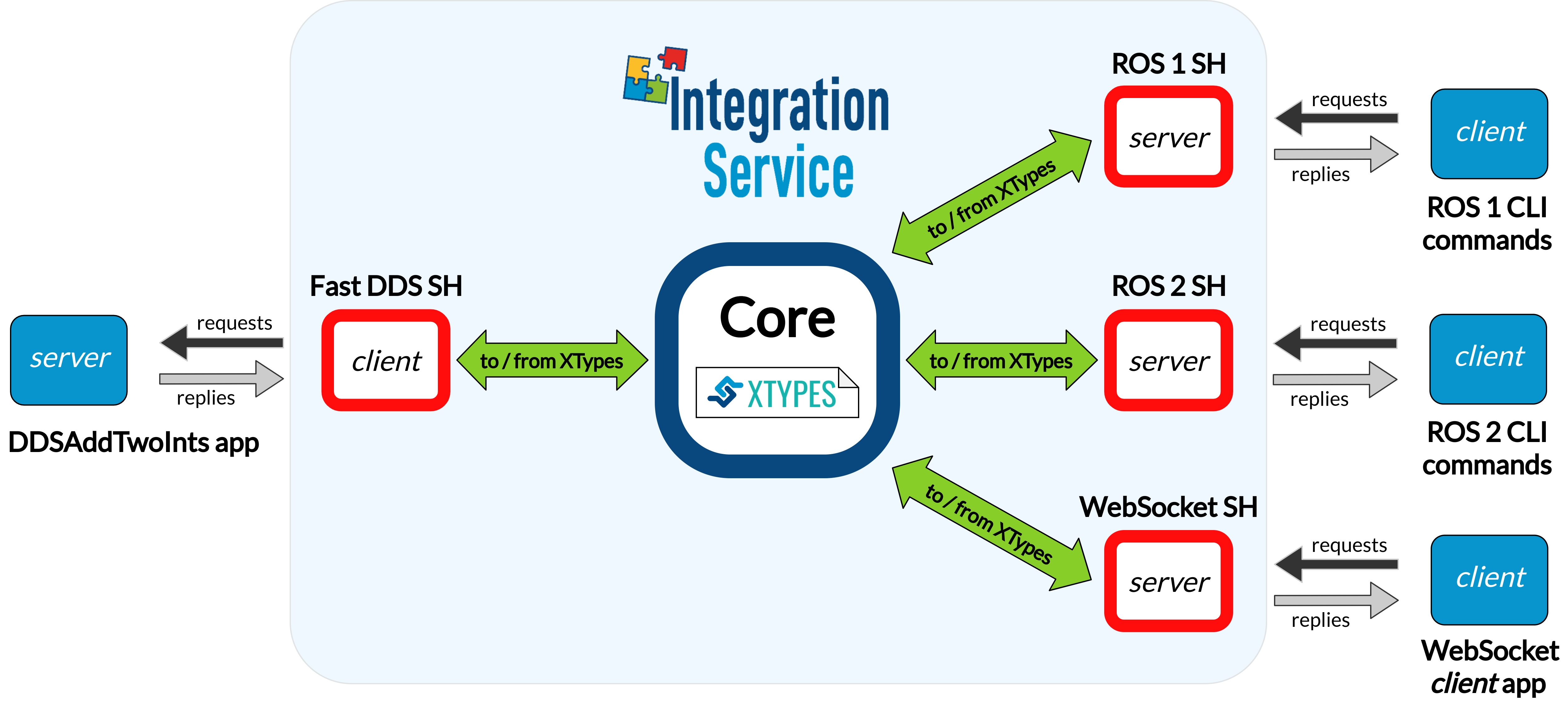
This example tackles the task of bridging a DDS server with one or more client applications, implemented using a wide variety of protocols.
Specifically, we discuss how to forward petitions coming from ROS 1, ROS 2 and a WebSocket
service client applications to a Fast DDS DDSAddTwoInts server application,
so that it can process them and fulfill each request with a proper answer message.
Note
If you are looking for an example on how to perform a service request from a DDS client to another protocol, please refer to any of the remaining examples in the server/client examples section.
1.2.1.1. Requirements
To prepare the deployment and setup the environment, you need to have Integration Service correctly installed in your system. To do so, please follow the steps delineated in the Installation section.
Also, to get this example working, the following requirements must be met:
Having Fast DDS (v.2.0.0 or superior) installed and the Integration Service
DDSAddTwoIntsexample working. This example can be found in the main Integration Service repository, under the examples/utils/dds/DDSAddTwoInts folder; to compile it, you can either compile the whole Integration Service project usingcolconwith the CMake flagBUILD_EXAMPLESenabled; or execute the following steps:cd ~/is-workspace/src/Integration-Service/examples/utils/dds/DDSAddTwoInts mkdir build && cd build cmake .. -DBUILD_EXAMPLES=ON && make
Having the Fast DDS System Handle installed. You can download it from the FastDDS-SH dedicated repository into the
is-workspacewhere you have Integration Service installed:cd ~/is-workspace git clone https://github.com/eProsima/FastDDS-SH.git src/FastDDS-SHHaving ROS 1 (Melodic or superior) installed and the Integration Service
example_interfacesROS 1 package compiled. This package can be found in the main Integration Service repository, under the examples/utils/ros1/src/example_interfaces folder. To compile and install it:source /opt/ros/$ROS1_DISTRO/setup.bash cd ~/is-workspace/src/Integration-Service/example/utils/ros1 catkin_make -DBUILD_EXAMPLES=ON -DCMAKE_INSTALL_PREFIX=/opt/ros/$ROS1_DISTRO install
Having the ROS 1 System Handle installed. You can download it from the ROS1-SH dedicated repository into the
is-workspacewhere you have Integration Service installed:cd ~/is-workspace git clone https://github.com/eProsima/ROS1-SH.git src/ROS1-SHHaving ROS 2 (Foxy or superior) installed, along with the
example_interfacestypes package. To install it:apt install ros-$ROS2_DISTRO-example-interfacesHaving the ROS 2 System Handle installed. You can download it from the ROS2-SH dedicated repository into the
is-workspacewhere you have Integration Service installed:cd ~/is-workspace git clone https://github.com/eProsima/ROS2-SH.git src/ROS2-SH src/ros2-shHaving OpenSSL and WebSocket++ installed:
apt install libssl-dev libwebsocketpp-dev
Having the WebSocket System Handle installed. You can download it from the WebSocket-SH dedicated repository into the
is-workspacewhere you have Integration Service installed:cd ~/is-workspace git clone https://github.com/eProsima/WebSocket-SH.git src/WebSocket-SH
After you have everything correctly installed in your is-workspace, build the packages by running:
colcon build --cmake-args -DBUILD_EXAMPLES=ON -DMIX_ROS_PACKAGES="example_interfaces"
1.2.1.2. Deployment
Below we explain how to deploy a full example of this communication, calling the DDS service from each of the available clients.
Launch the DDS AddTwoInts server
To do so, open a terminal, go to the is-workspace folder and execute the following command:
cd ~/is-workspace
./build/DDSAddTwoInts/DDSAddTwoInts -m server
The server will start running under the default DDS domain ID 0 listening for incoming petitions.
Execute Integration Service
Open two terminals:
In the first terminal, source the ROS 1 installation and run the
roscore:source /opt/ros/$ROS1_DISTRO/setup.bash roscore
In the second terminal, go to the
is-workspacefolder, source the ROS 1, ROS 2 and local installations, and execute Integration Service with theintegration-servicecommand followed by the fastdds_server__addtwoints.yaml configuration file located in thesrc/Integration-Service/examples/basicfolder.source /opt/ros/$ROS1_DISTRO/setup.bash source /opt/ros/$ROS2_DISTRO/setup.bash source install/setup.bash integration-service src/Integration-Service/examples/basic/fastdds_server__addtwoints.yaml
Call the service from ROS 1
In a new terminal, source your ROS 1 installation and invoke the service by executing the following instructions:
source /opt/ros/$ROS1_DISTRO/setup.bash
rosservice call /add_two_ints 3 4
You should receive the following output from the DDS server processing the petition:
sum: 7
Call the service from ROS 2
In a new terminal, source your ROS 2 installation and invoke the service by executing the following instruction:
source /opt/ros/$ROS2_DISTRO/setup.bash
ros2 service call /add_two_ints example_interfaces/srv/AddTwoInts "{a: 5, b: 17}"
You should receive the following output from the DDS server processing the petition:
waiting for service to become available...
requester: making request: example_interfaces.srv.AddTwoInts_Request(a=5, b=17)

response:
example_interfaces.srv.AddTwoInts_Response(sum=22)
Call the service from WebSocket
The WebSocket client demo application used for this example can be found in the websocket.org/echo webpage:
First, under the Location section, connect to the WebSocket server automatically deployed by the Integration Service. To do so, and since the example is being run without SSL security, copy and paste the following URL into the Location field text box, and press Connect:
ws://localhost:80
Now it is time to advertise the service we want to use; to do so, under the Message text box, enter the following and press Send:
{"op": "advertise_service", "service": "add_two_ints", "request_type": "AddTwoInts_Request", "reply_type": "AddTwoInts_Response"}
Finally, after the service has been advertised, call it by sending the following message from the WebSocket echo:
{"op": "call_service", "service": "add_two_ints", "args": {"a": 14, "b": 25}}
After this, in the Log, you should receive the following response from the DDS server:
RECEIVED: {"op":"service_response","result":true,"service":"add_two_ints","values":{"sum":39}}